Help
Making a strong password


I'll make one up that nobody could guess, not even you. That's rather the point.
In Didji: Settings, then Tools, then Password Generator
The strongest password is one you'd never think of yourself. Didji makes them for you, and since it remembers them too, you never have to.
- Changing a password on a website? In Didji, open the login, tap the pencil , and tap Generate beside the password. Or open the generator on its own: tap the cog on the home screen, then Password Generator under Tools.
- At the top, choose Characters, Words or PIN.
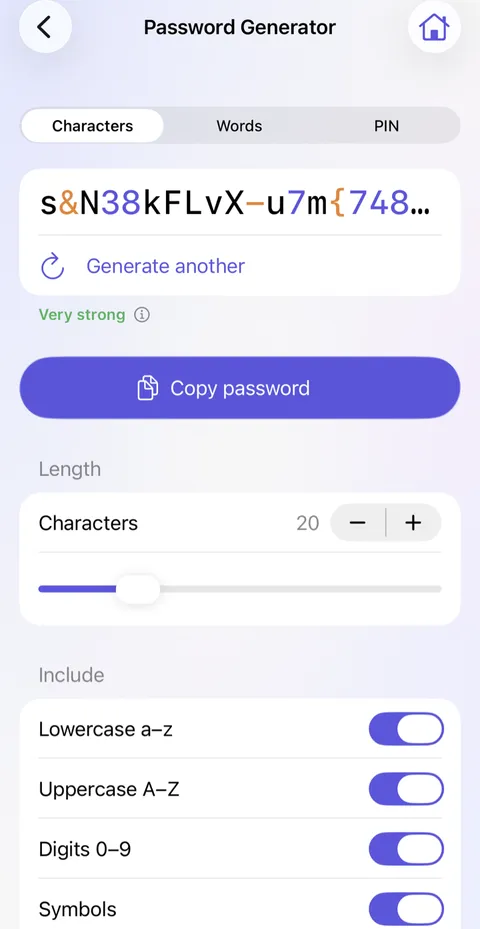
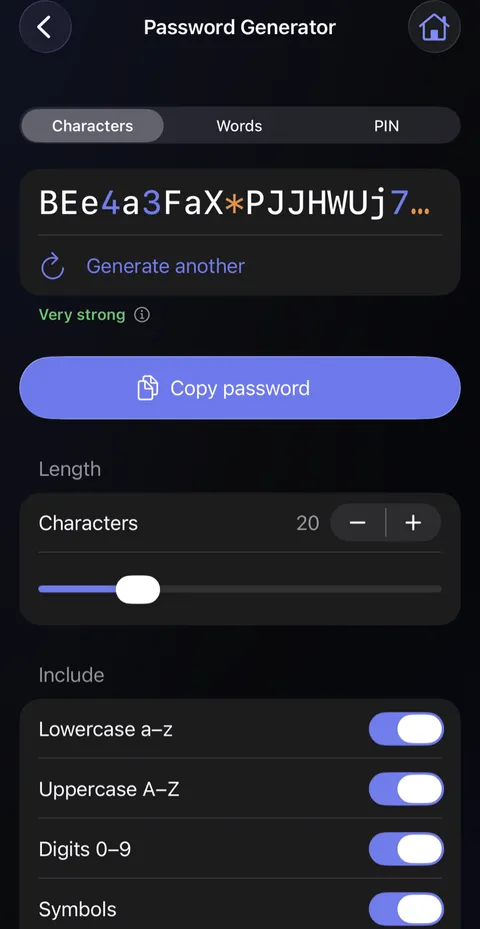
- Words makes a password from real words joined by hyphens, much easier to type on a TV or a car's screen.
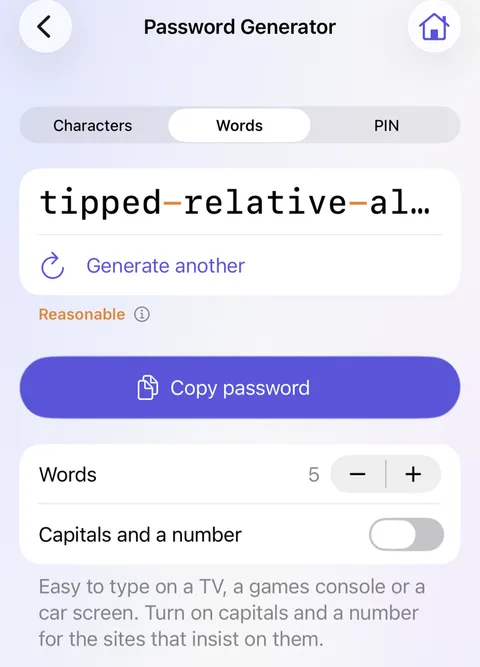
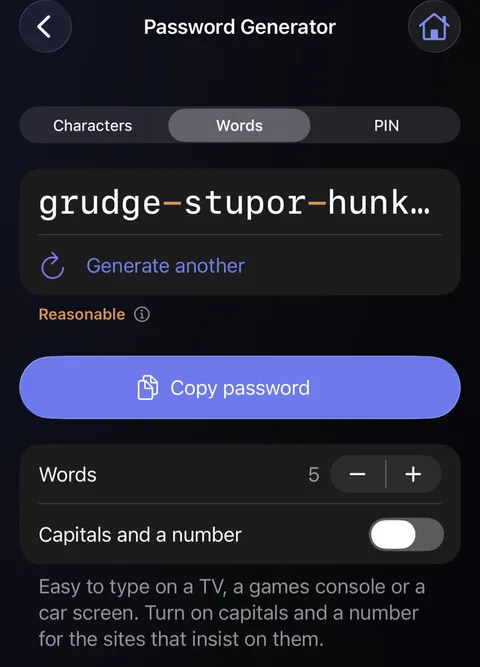
- Tap Generate another until you like it. Then tap Use to put it in the login, or Copy password to paste it somewhere.
Good to know
- The word under the password, such as Very strong, says how hard it would be to guess. Tap its for why.
- Some sites insist on capitals and a number: switch on Capitals and a number under Words.
- With Keep website information up to date on under Privacy in Settings, Generate on a login whose website sets rules for passwords makes one that suits them, and says so under it. Change any setting and it makes them your way again.
- Avoid look-alike characters leaves out O and 0, l, 1 and I, for passwords you'll read and type by hand.
- Change password on website, in a login's menu and beside a weak, reused or breached password, opens the site's own page for it in Safari. Some sites have no such page and show "not found"; change it from the site's account settings instead. After you save, Exposure Check keeps an eye on it for you.
See also
Still stuck?
Write to us at hello@didji.app, and tell us which device you’re using if you can.
Never send a password or your recovery code to anybody, us included. What we can’t do for you.