Help
Private Photos


Photographs locked away with everything else, and seen only here.
In Didji: The home screen: the Private Photos card
Private Photos keeps photographs and videos you'd rather not have in Apple Photos: an ID card, a parking permit, something personal. They're locked like everything else in your vault, and they're never shared with anyone.
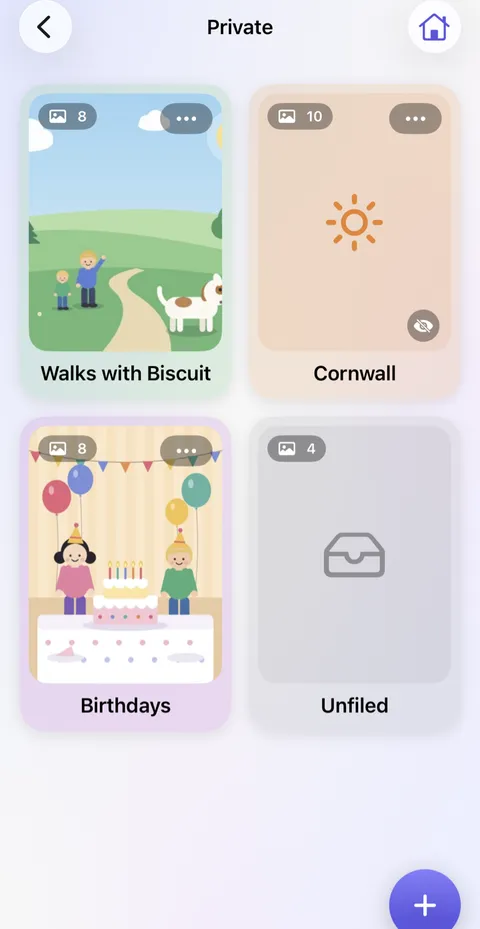
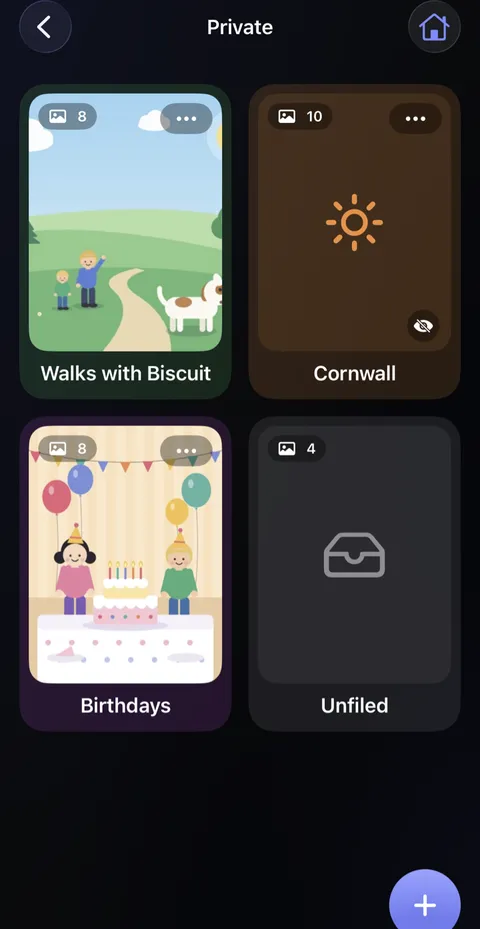
- On the home screen, tap Private Photos. The Private screen shows your albums. Tap the round at the bottom right to make one. To put them in a different order, touch and hold any album, tap Reorder albums…, and drag them by their handles.
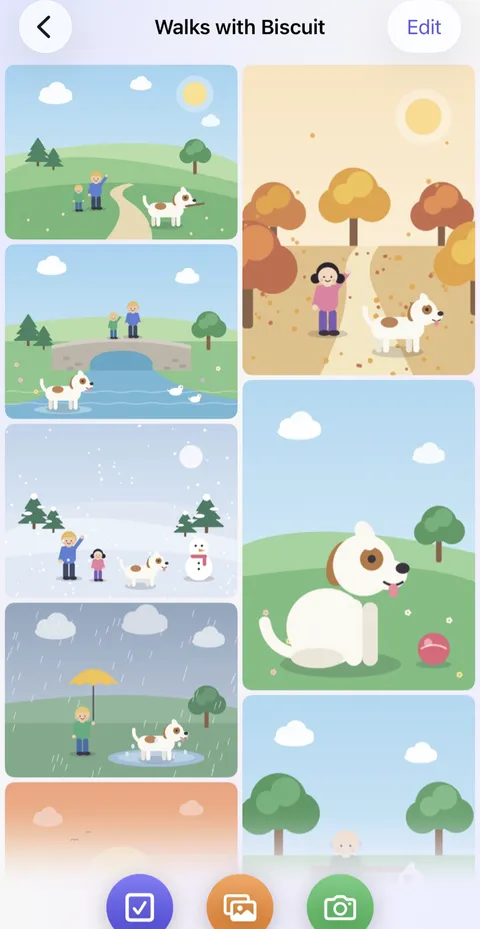
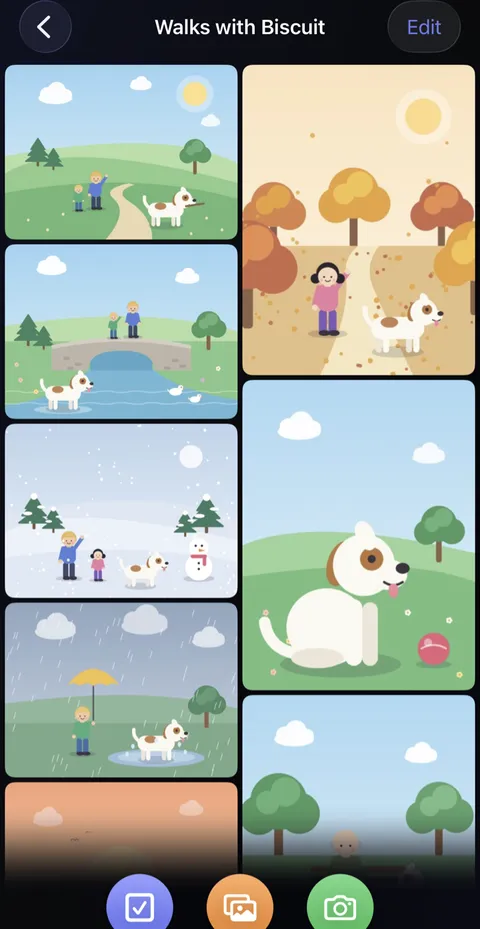
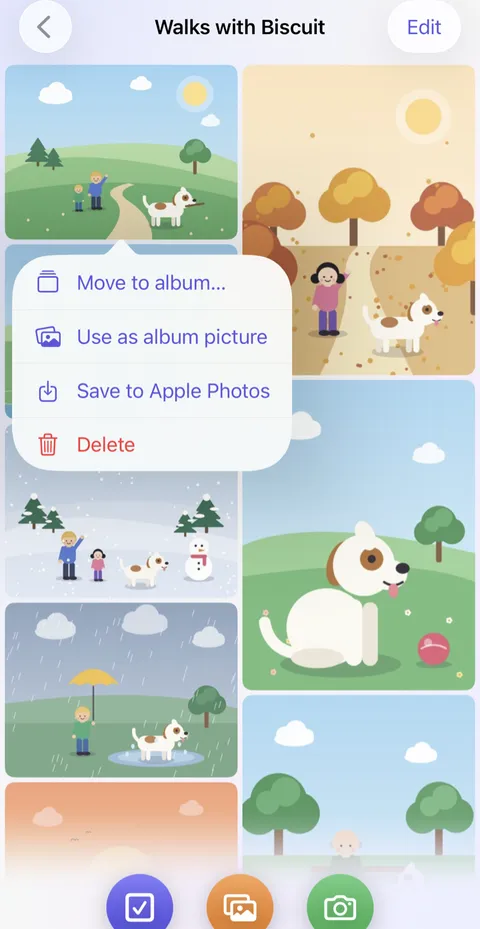
- Open an album. Three round buttons sit at the foot: Select, Apple Photos to bring pictures in, and the Camera to take new ones straight into Didji.
- After bringing pictures in from Apple Photos, Didji offers to delete the originals there, so they're only in Didji: on this device alone until iCloud has them. iOS keeps the originals in its own Recently Deleted for 30 days.
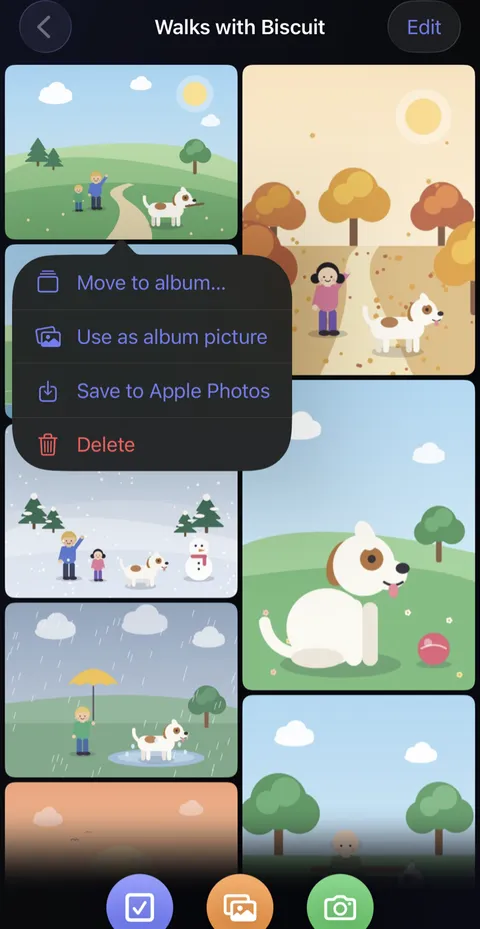
- Touch and hold a picture for Move to album…, Use as album picture, Save to Apple Photos and Delete.
Good to know
- An album can be kept covered: its pictures stay blurred until you tap Tap to show, and are covered again when you leave.
- Save to Apple Photos copies pictures out again, after Face ID. The copy there isn't protected by Didji, and keeps whatever its file holds, where it was taken included.
- Deleted pictures don't go to a bin. Deleting is for good.
- Taking a picture with Didji's own camera means it never exists in Apple Photos at all.
- Private Photos never print, in any form. Printing is for records and blank forms only.
See also
Still stuck?
Write to us at hello@didji.app, and tell us which device you’re using if you can.
Never send a password or your recovery code to anybody, us included. What we can’t do for you.