Help
Filling in a password in an app or website


Tap the box, and I'll fill it in once Face ID has had a look at you.
Once AutoFill is on for Didji, signing in takes two taps and a glance. If it isn't on yet, start with Filling in passwords for you.
- On the website or in the app, tap the username or password box. Above the keyboard, iOS offers your login from Didji.
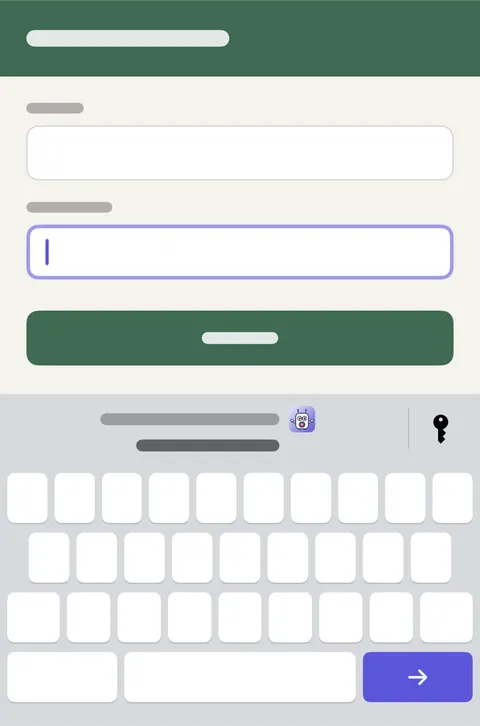
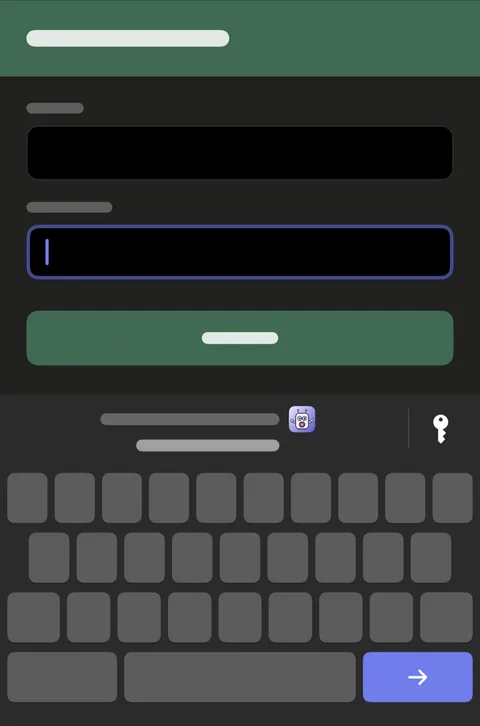
- Tap the login. (Sometimes iOS shows it in a card at the foot of the screen instead; tap Fill Password there.)
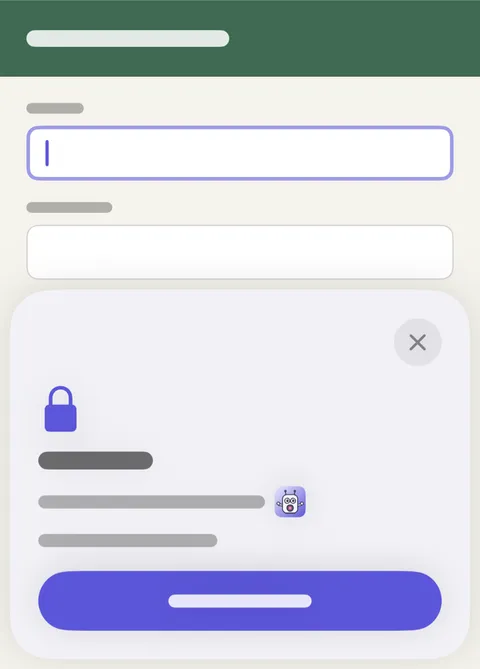
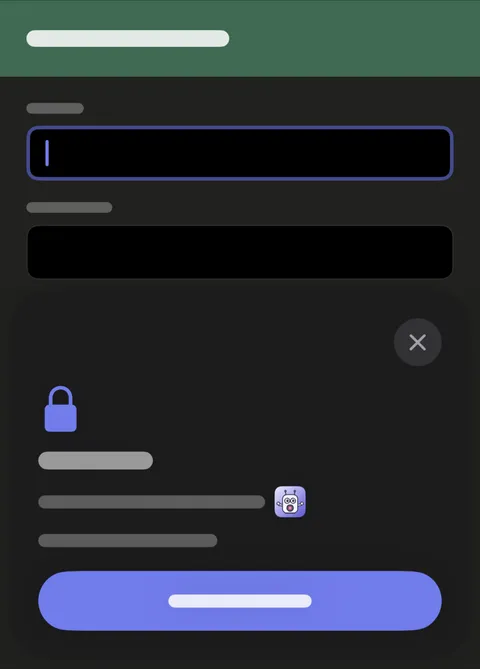
- A short sheet with Didji in it appears while Face ID checks it's you (or asks for your Didji passcode, if you use one). Then both boxes are filled.
- Not the login you wanted, or none offered? Tap the key at the right of the bar above the keyboard, choose Didji, and pick from the list. Logins For this site come first, the one you used most recently on this phone at the top; with two accounts at one site, the one you used last is the one offered above the keyboard too.
Good to know
- Archived logins for this site, and ones in Recently Deleted, are tucked away under Also in your vault, just below the logins for this site. Filling from one of those asks first: Fill and Restore puts it back in use, Fill Only leaves it where it is. A login for another website, chosen from All logins, asks too, naming its own website: Fill Anyway fills it.
- Some sites share one sign-in, such as eBay's countries. With Keep website information up to date on under Privacy in Settings, a login saved for one appears on the others under Saved for a site that shares this sign-in, saying where it was saved. Sites newly added to Apple's list wait a month first.
- A sign-in code is offered the same way, when a site asks for it.
- To offer your login above the keyboard before Didji is open, iOS keeps a list of each login's website and username, on your phone only. The password stays locked in Didji until Didji has checked it's you.
- If your login isn't offered at all, see My password isn't being offered.
See also
Still stuck?
Write to us at hello@didji.app, and tell us which device you’re using if you can.
Never send a password or your recovery code to anybody, us included. What we can’t do for you.