Help
Wi-Fi


Join a network in one tap, or let a guest scan their way on. No more reading the password off the router.
A Wi-Fi network record keeps a network's name and password, so you can join it, and share it, without hunting for the card on the back of the router.
- Tap the round at the bottom right of the home screen, and choose Wi-Fi network. Fill in the network name and password, and tap Save. (Or tap Scan a QR code and scan the code on the router's label.)
- Open the record. Two buttons sit near the top: Show as a QR code and Join this Wi-Fi.
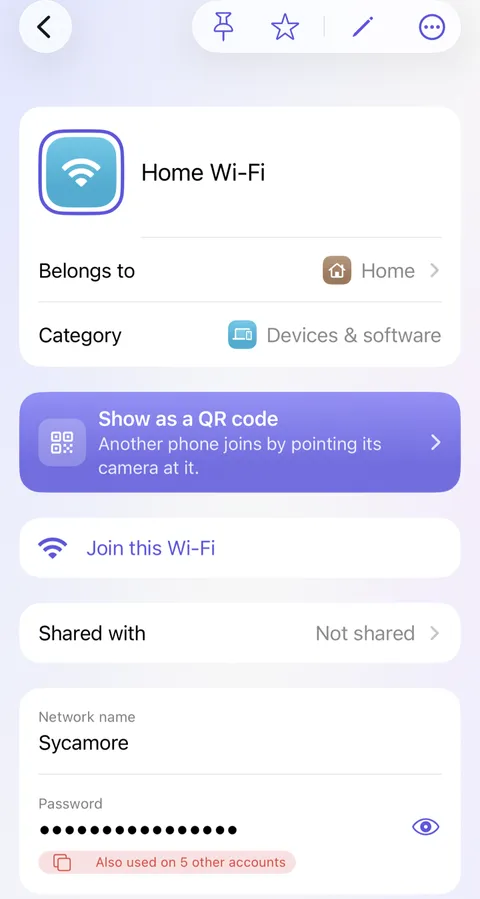
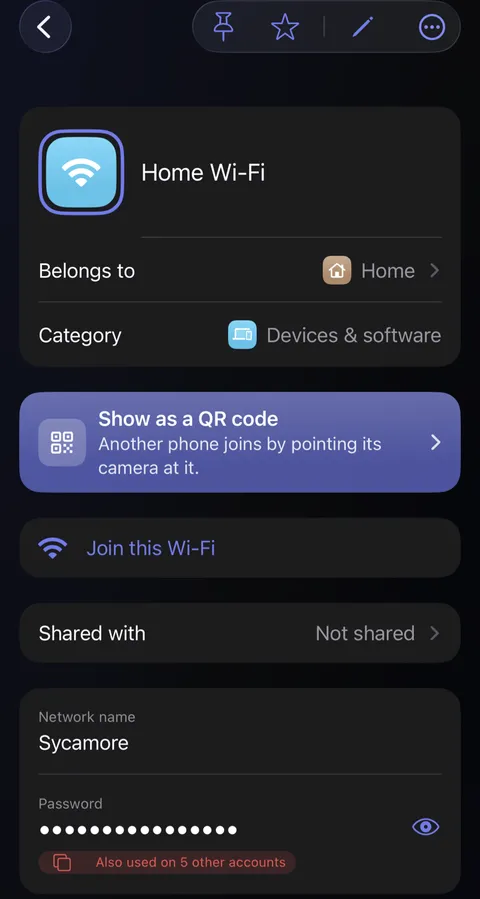
- Tap Join this Wi-Fi to join it from this phone. iOS asks before it joins.
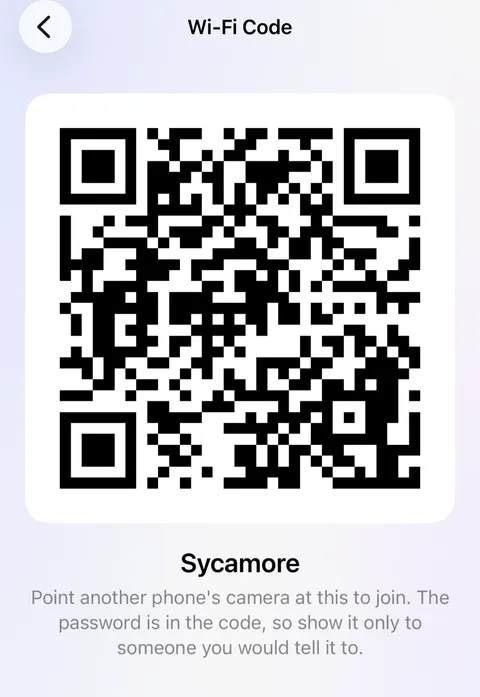
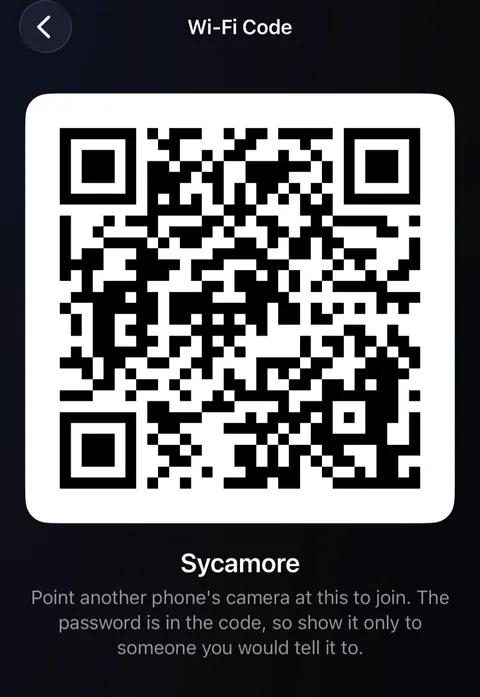
- For a guest, tap Show as a QR code, and let them point their phone's camera at it. Their phone offers to join.
What’s the Wi-Fi password?
A short cartoon film of the Taylors’ kitchen. Priya, Sam’s colleague, arrives with her laptop and asks for the Wi-Fi password. Nobody remembers it, and the sticker on the router is too small to read. Sam opens Didji on her phone, finds Home Wi-Fi and shows it as a QR code. Priya’s phone scans it and her laptop joins. The film ends on Didji’s icon and name.
What’s said
- Friends always ask.
- Nobody remembers it.
- Didji keeps it.
- Share the Wi-Fi without reading out a password.
- Your passwords, and everything else.
Good to know
- The password is inside the QR code, so show it only to someone you'd tell it to.
- To read the password out instead, touch and hold it: it fills the screen in large type.
- Joining isn't available on a Mac.
See also
Still stuck?
Write to us at hello@didji.app, and tell us which device you’re using if you can.
Never send a password or your recovery code to anybody, us included. What we can’t do for you.