Help
Adding a person, a pet, a vehicle or a place


Only the name is needed. Fill in the rest whenever you like, there's no rush.
In Didji: The home screen: People & Places, then the add button on a card
Everyone and everything in People & Places has a record holding their details: a Person for a person, a Pet for a dog. Adding someone makes that record for you.
- Open People & Places, and tap the add button at the foot of the card you want, such as Add new person or Add new pet. Or tap the big on the home screen and choose Person, Pet, Place, Vehicle, Organisation or Thing under People & Places at the top: the same form opens either way.
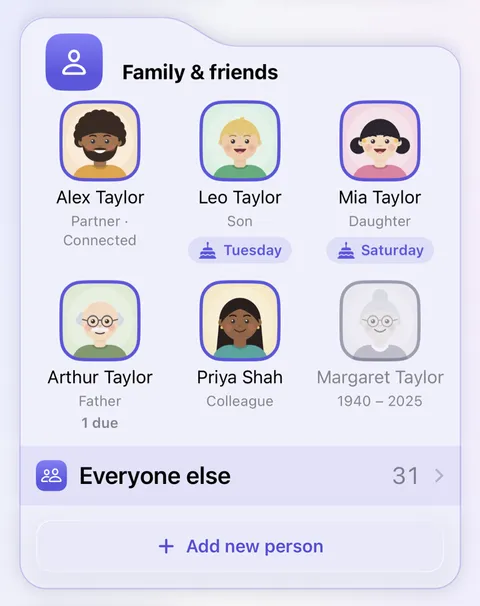
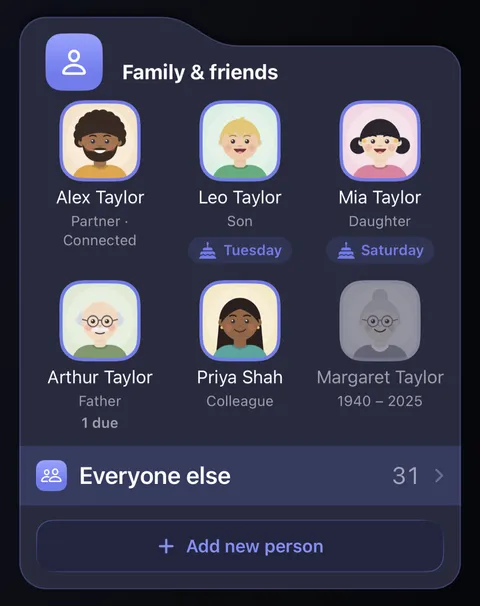
- A form opens with the cursor in Name. Only the name is needed. For a person or an organisation, Shown in puts them in Family & friends or Everyone else (Key organisations or Occasional). Add anything else you know, then tap Save. Fill from Contacts, under the name, copies their details from the Contacts app, one contact of your choosing, with a preview before anything is saved.
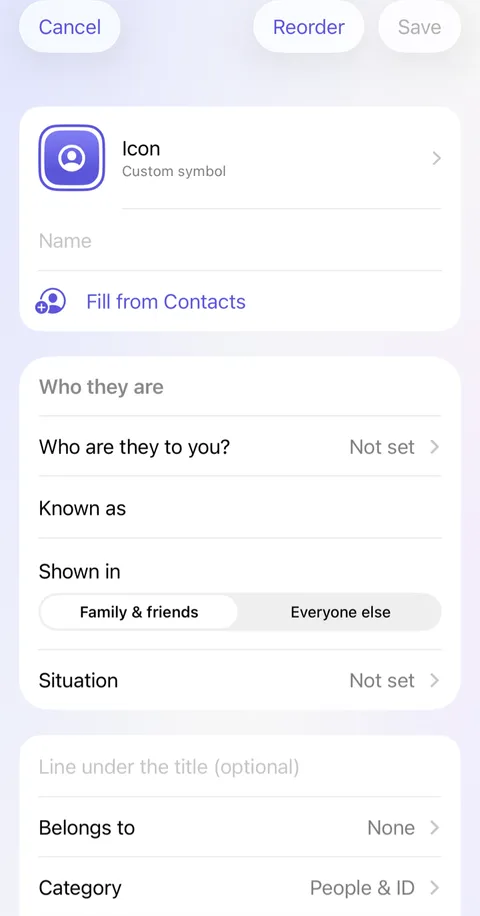
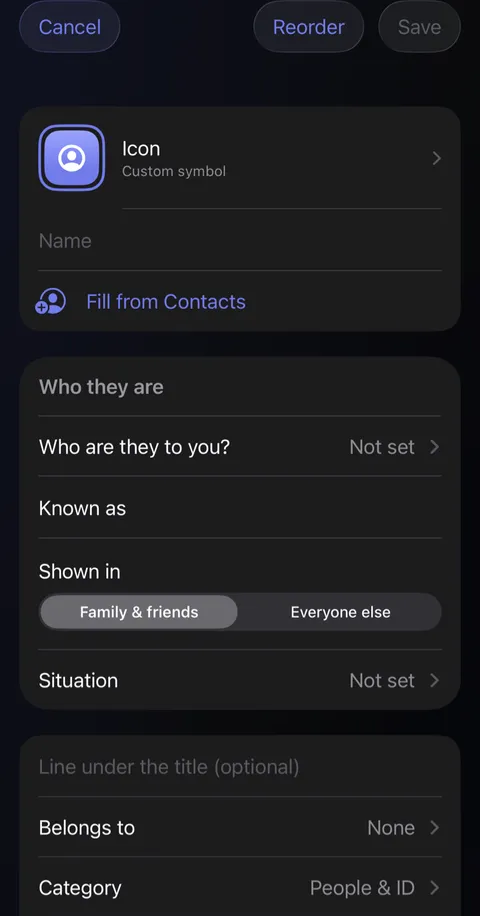
- Under Who they are, choose who they are to you, and fill in Known as and Situation if you like. To change any of it later, open their record and tap the pencil .
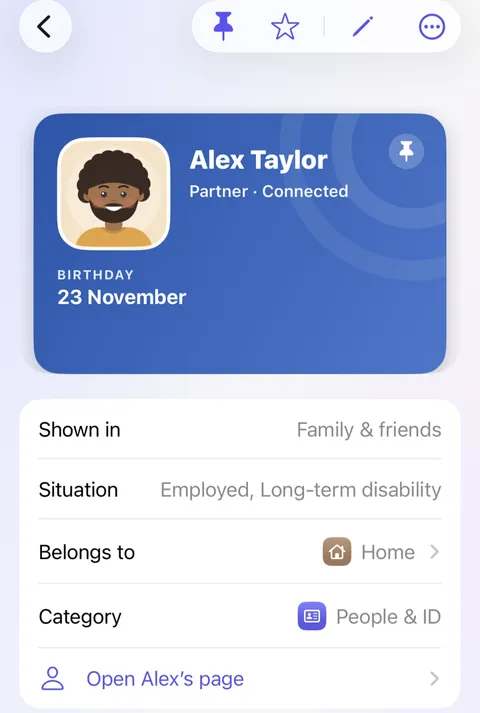
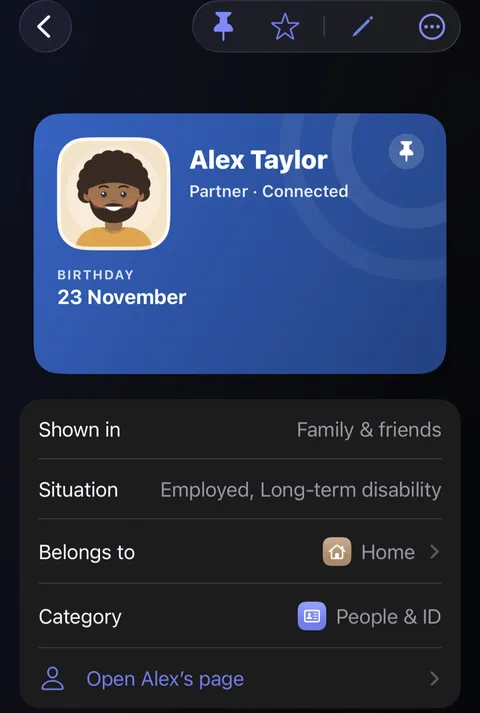
- For yourself, open your own record, tap the pencil , and choose This is me under Who they are.
Good to know
- Something you already have, such as a Person or a car, can join instead: open it, tap , then Show in People & Places as….
- Known as is a name of your own, such as "Mum", shown everywhere in place of their full name.
- A place is made from an address, never typed in; see Home, and other addresses.
- A record's picture becomes their face everywhere in Didji. Tap the icon in the editor to choose a photo.
- Contacts come in one at a time, on purpose; see Why contacts come in one at a time.
See also
Still stuck?
Write to us at hello@didji.app, and tell us which device you’re using if you can.
Never send a password or your recovery code to anybody, us included. What we can’t do for you.