Help
Categories and templates


A template is a head start. Once your record is made, it's yours to change however you like.
Two things keep your vault in order. Categories are the coloured sections on your home screen, and every record sits in one of them: People & ID, Logins, Travel & memberships, Health, Vehicles, Notes, Money, Cards, Devices & software, Documents, Home and Other. Templates are ready-made layouts on the New sheet, so a passport arrives with a passport's fields and an MOT with an MOT's.
- Tap the round at the bottom right of the home screen. The New sheet slides up, with the templates listed under the same categories as your vault.
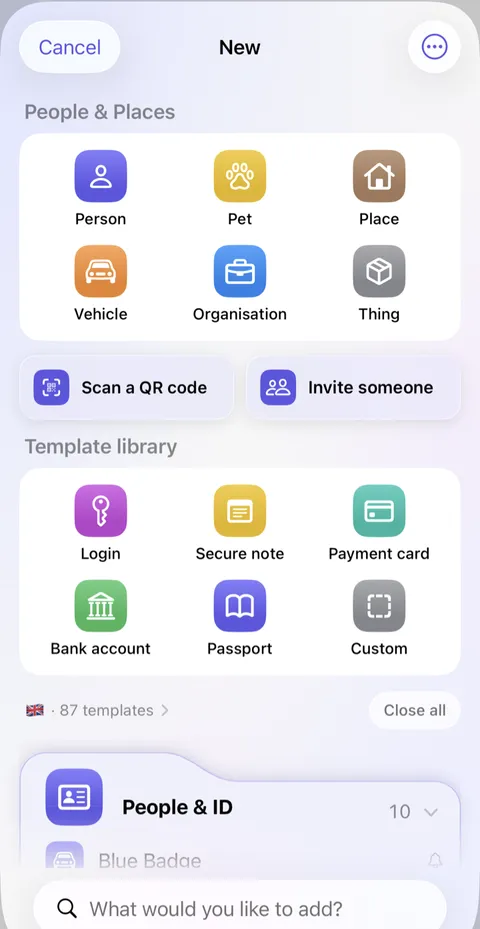
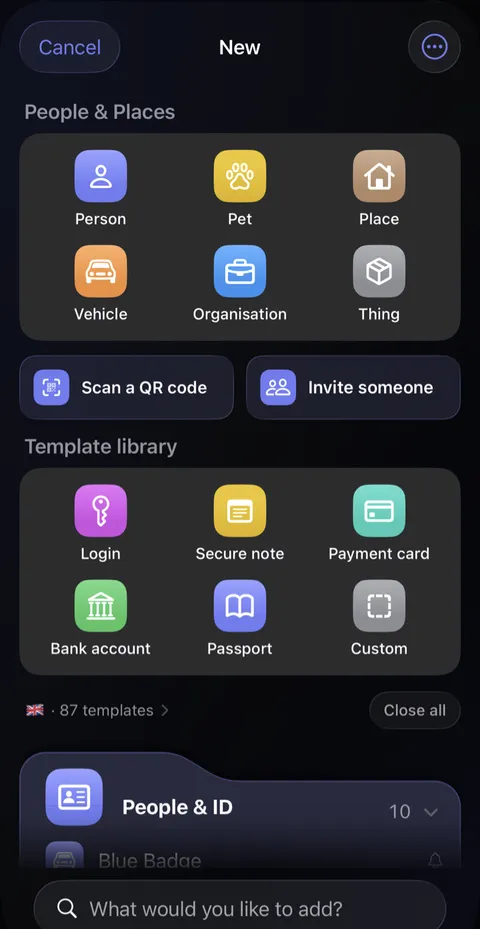
- Just above the lists is a small line with a flag and a count, such as "58 templates". It shows which countries' paperwork is on offer. Tap it.
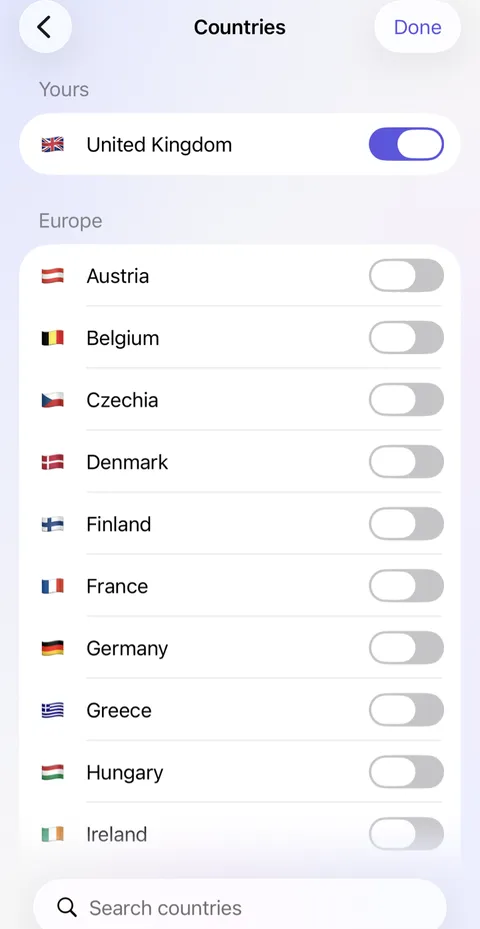
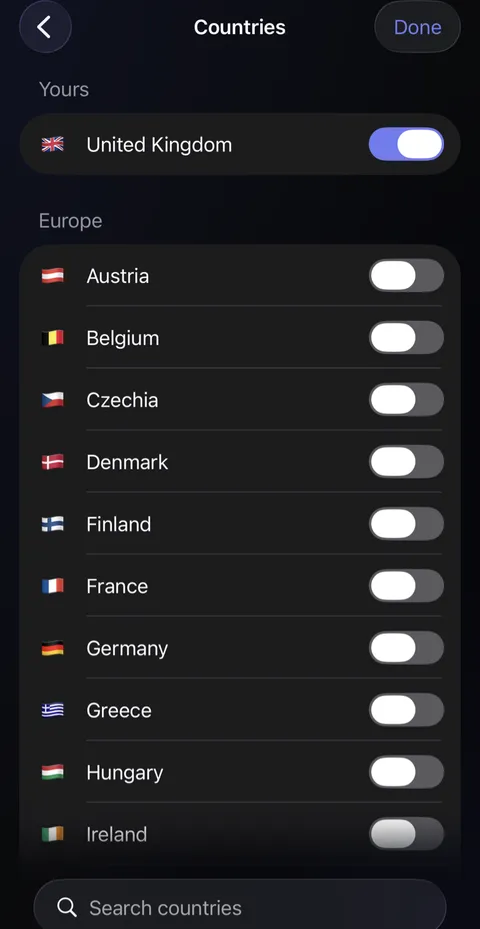
- The Countries screen opens. Switch on every country whose paperwork you keep, perhaps the one you live in and the one you grew up in, then tap Done.
- Back on the New sheet, those countries' own documents appear in the lists, under the right categories.
Good to know
- Once a record is made, nothing ties it to its template. Change its fields as you like; changing a template later never changes your records.
- A small bell beside a template means it reminds you before a date in it is due.
- A country switched off keeps its templates out of the New sheet and its search. Records you've already made stay as they are.
- Touch and hold a template to pin it to the top card.
- You can rename, recolour and reorder categories in Settings, under Customisation, then Categories.
See also
Still stuck?
Write to us at hello@didji.app, and tell us which device you’re using if you can.
Never send a password or your recovery code to anybody, us included. What we can’t do for you.